How to create a new contact list?
The steps to create a contact list are as follows:
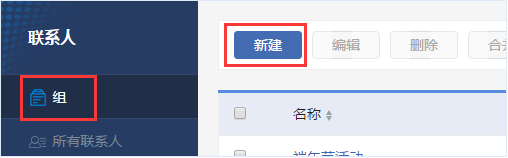
● Click [Contacts] → [Groups]
● Click [New], enter the group name, and click [Confirm] to complete the creation
● Click the group name to enter the contact list
● Click [New] in the list, enter the email address and click [Save] to complete the contact addition
● In addition to adding one by one, you can also use [Import] to add more contacts
How to import contact lists?
The steps to import contacts are as follows:
● Click [Contacts] → [Groups]
● Click the group name to enter the contact list
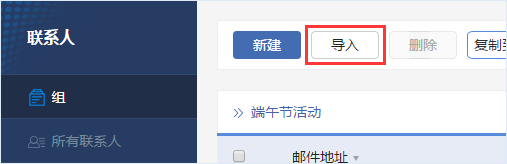
● Click the [Import] button to enter the import guide page
● Download the standard format document provided by the system and fill in the contact information
● After filling out, select the document to upload, and you can choose whether to replace duplicate contact information
● The import work will be carried out in the background, and you can perform other operations during this period
Differences between merging, copying, and transferring lists
When you merge two lists, all contacts in the two lists will be merged into the same list; when you transfer contacts, you just move individual email addresses to another list (the contact will disappear from the original list); when you copy contacts, the contact will not only be stored in the original list but also appear in another list. Whether merging lists, moving or copying contacts, any duplicate email addresses in the list will be deleted.
How to batch delete contacts?
If you upload wrong contact data, you can use the following methods to batch delete recipients:
1. You can directly delete the group: Enter the contact group page, check the groups you want to delete, and click delete
2. Enter the specific list and batch delete by selecting multiple items
How to view unsubscribed users and hard bounce users?
Email addresses in the recipient list have 4 statuses: subscribed, user unsubscribed, hard bounce, and soft bounce. In the sending feedback, if the user unsubscribes or the email is bounced by the recipient address, the list will automatically update the recipient status. Select the status you want to view in the drop-down box of the menu.
When sending emails, the system will not send to unsubscribed users and hard bounce users.
Do I need to manually delete hard bounce addresses every time?
No need. After a sending activity, the system will automatically mark hard bounce addresses. When the user sends an activity again, if there are hard bounce addresses in the list, the system will automatically remove these addresses to prevent them from being bounced again when sent.Hard bounce addresses refer to invalid addresses in the list, that is, addresses that do not exist or have not been used for a long time. When sending emails to these addresses, the emails will be directly bounced back because the addresses do not exist. Too high a bounce rate not only wastes marketing resources but also leads to a decline in sending reputation. Therefore, attention should be paid to the way of collecting recipient addresses to control the quality of the address list from the source.
What happens when you unsubscribe?
When a customer unsubscribes from your emails, the system will automatically filter these contacts and automatically exclude them in the next sending. If you need to browse the unsubscribe list, you can view the details in the activity report.If I want to send an email to multiple contact groups, will duplicate contacts receive the email multiple times?
No, if you select more than one group of contacts, duplicate contacts will only receive one email.
We are committed to helping enterprises send electronic advertisements, product information, sales information, market surveys, and marketing campaign information, helping enterprises to supervise, quickly and low-cost email marketing.

Boss Edm Sales Hotline:
400-8872-888 / 0592-2958885
Email Address:
VIP@laobanmail.com